
Play for Dream Setup Guide

This page will give you a step-by-step walkthrough on how to set up your Play for Dream MR headset for use with Tobii Ocumen.
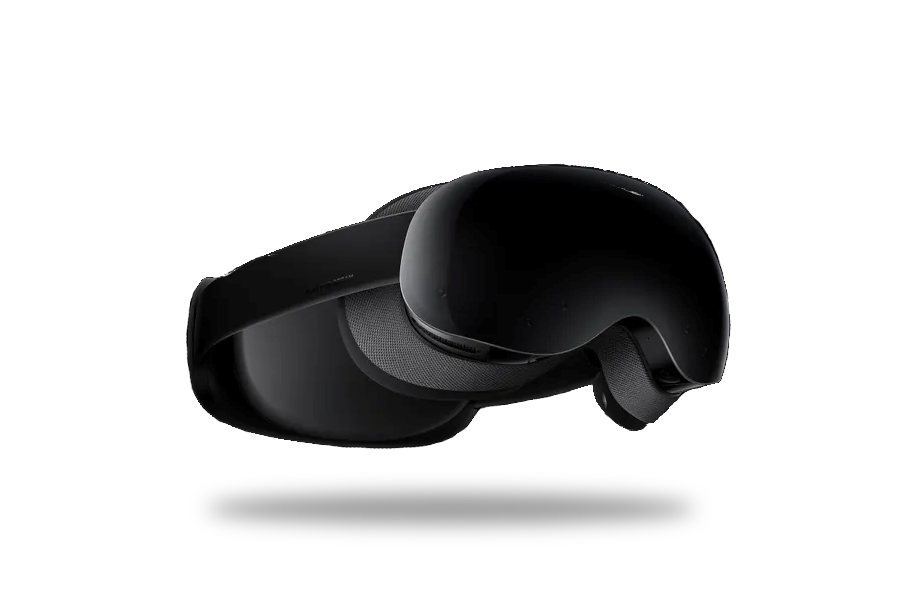
Table of Contents
Step 1: Set up your headset
Follow the built-in first time setup guide for your headset.
Step 2: Calibrate for your eyes
Make sure to calibrate the eye tracking using the built-in calibration.
Step 3: Import and setup the Play for Dream Unity SDK
-
Download the Play for Dream Unity SDK v3.0 or later and import it into your Unity project.
-
Follow Play for Dream’s Getting Started instructions.
Step 4: Validate the setup
Before going further, make sure
- Build Settings - Platform is set to Android
- Player Settings - Other Settings
- The Minimum API Level is set to Android 7.1 (API level 25) or higher
- The Scripting Backend is set to IL2CPP
- The Target Architectures is set to ARM64
- Project Settings - XR Plug-in Management
- YVR is enabled in the Android tab of the XR Plugin Management settings
- XR Interaction Toolkit is installed
- XR > XR Origin (VR) is added to the scene
- YVRManager is added to the XR Origin (VR) object in the scene
- The YVR Manager has Use Unity Rig enabled
Next steps
Congratulations! You’re now ready to set up Tobii Ocumen. See Advanced Signals - Getting Started.
- Check out our Explore section for demos and prototypes.
- Read more about designing for eye tracking in our Learn section.